
Windows Markdown Editor
Local-first writing with a calm reading surface, raw Markdown control, and recovery-aware file handling.
Write in a quiet workspace. Ship from the same files.
Glyfana is a local-first Markdown editor for release notes, docs, and internal writing. The site shows the actual product first, then keeps the latest Windows installer, release notes, and verification details within reach.
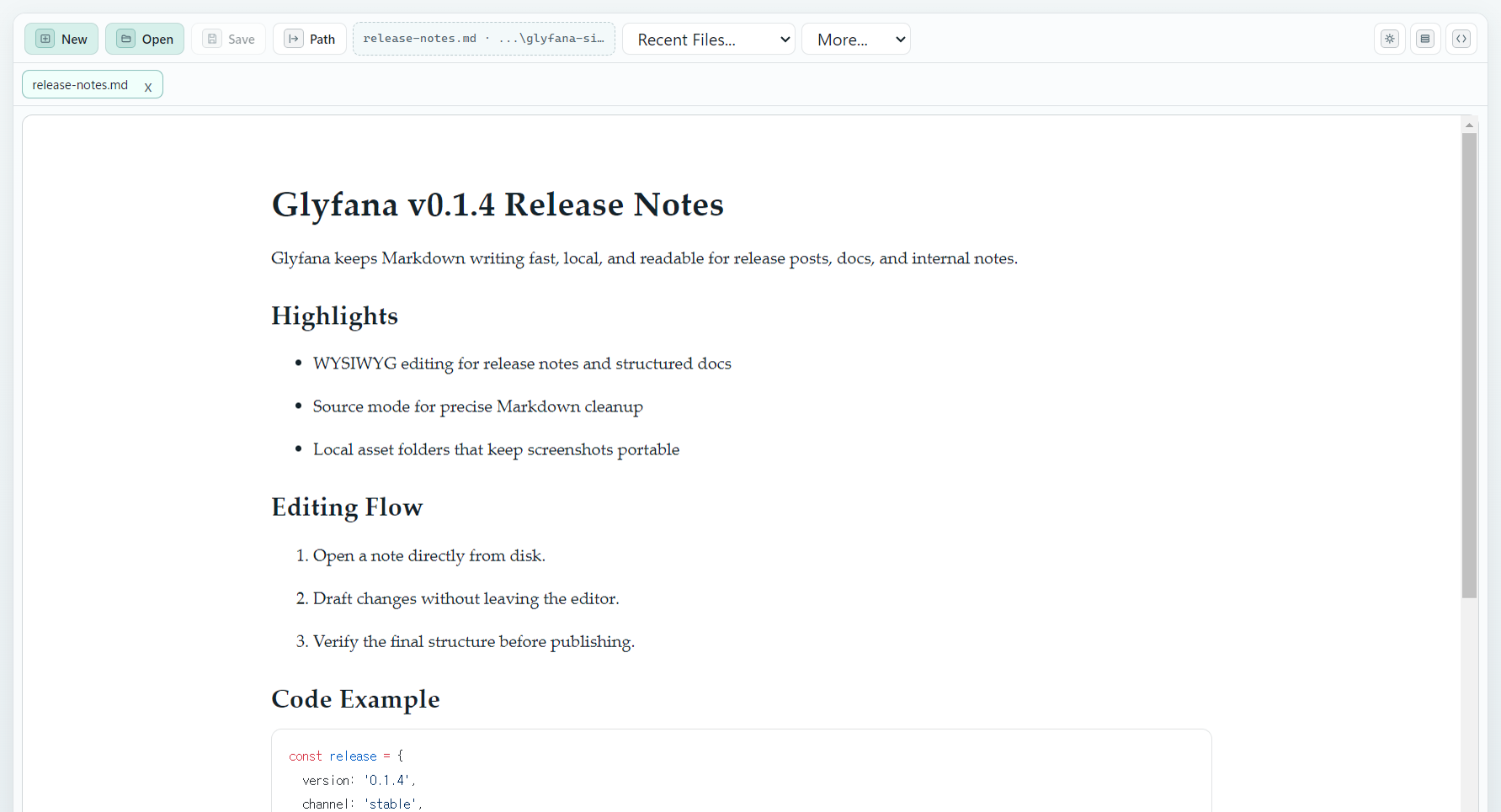
Editor preview
Real app capture
Best for
Release notes, docs, changelogs, and local knowledge work
Why it stands out
A product-first download page with source mode, screenshots, and trust signals
- Local-first Markdown files with portable assets
- WYSIWYG editing plus raw Markdown source mode
- Installer, release notes, checksum, and asset list in one place
Source of truth
This page tries the live GitHub Releases API first. If the API cannot be reached, it falls back to pinned metadata so the download path still stays usable.
Product Preview
A download page should feel like a product page, not a release archive.
Glyfana works best when the editor is visible early. Bring the writing surface, source mode, and local-file workflow forward so users understand what they are installing before they ever see a checksum.
- Readable long-form editing instead of a utility-first shell
- Source mode stays one step away when structure matters
- Local-file trust and shipping workflow stay tied to the writing surface
What's New
Read the latest release changes without leaving the download page.
When GitHub publishes release notes, this section surfaces the most useful lines first and keeps the full notes one click away.
- Loading release highlights...
Features
Spell out what the packaged app can actually do before asking for the install.
Glyfana is more than a setup file. This section explains the editor workflow, image handling, recovery, update path, and verification behavior users get with the packaged build.
Editing Flow
Typora-style Markdown editing with a real source mode.
The main view stays close to the rendered document, but raw Markdown is still one toggle away when precision matters.
- Milkdown and ProseMirror power the WYSIWYG writing surface
- CodeMirror 6 source mode lets users drop to plain Markdown instantly
- Shiki-based code block highlighting keeps technical notes readable
Image Workflow
Drop, paste, and keep images next to the note instead of losing track of assets.
Local media stays portable because Glyfana stores image files beside the document rather than hiding them in app-only storage.
- Drag and drop or paste images straight into the editor
- Saved files land in a sibling
<note>.assets/directory - Relative paths and
mdlocal://rendering keep previews working in dev and packaged builds
Autosave
Saved notes and untitled drafts both get their own recovery path.
The app uses idle autosave rules that match whether the note already belongs to a real file on disk.
- Saved notes write back to disk automatically when the editor is idle
- Untitled notes are preserved as draft data in the app userData folder
- Crash recovery and draft restore reduce the odds of losing work between sessions
File Safety
Unsaved changes and external edits are treated as first-class conflicts.
Glyfana does not assume the copy on disk always wins. It surfaces choices before local work gets overwritten.
- Warns before closing the window or opening another file with unsaved changes
- Watches for external file changes while the note is open
- Lets users reload, keep editing, save as, or overwrite intentionally
Updates
Release delivery continues after install with GitHub-backed app updates.
The packaged app can keep checking the same release channel that powers this website, so users do not have to chase new builds manually.
- Packaged builds can receive automatic updates from GitHub Releases
- Background checks run on startup and then every hour
- The Help menu and restart prompt cover manual and in-app update flows
Verification
The install page keeps the trust signals on the surface.
Users can see what changed, which assets were published, and how to verify the build before they run the installer.
- The main CTA points at the current stable
Setup.exebuild - Release notes, asset inventory, and SHA256 stay on the same page
- Pinned manifest data remains available when the live GitHub API is unavailable
Install
Ship a Windows installer without extra packaging infrastructure.
GitHub Releases remains the artifact store. This page adds a cleaner front door with download, install, and verification guidance in one place.
Download the current installer
Use the primary action to fetch the latest stable .exe attached to the current release.
Verify the file hash
Compare the local SHA256 value with the published checksum before running the installer.
Install and track updates
Release notes and the full asset list stay linked so users can review every published build.
FAQ
Answer the install questions before support has to.
The fastest way to reduce hesitation is to explain how Glyfana handles files, recovery, updates, and verification in plain language.
What happens to images that I paste into a note?
Glyfana can paste or drop local images directly into the editor. For saved notes, image files are written
into a sibling <note>.assets/ folder and referenced with relative paths so the note stays portable.
What happens if I close the app with unsaved changes?
The app warns before closing or switching files when local changes are still dirty. Saved notes use idle autosave, and untitled notes are preserved as drafts in the app data folder for later restore.
What if the same file changes outside Glyfana?
Glyfana watches for external file changes and opens a conflict flow instead of silently overwriting your work. Users can reload from disk, keep editing, save as a new file, or overwrite intentionally.
How do updates arrive after install?
Packaged builds can check GitHub Releases on startup and then every hour. Users can also trigger a manual check from the Help menu and restart from the in-app update prompt when a new build is ready.
How should I verify the installer before running it?
Download the Setup.exe, compute its SHA256 value with the PowerShell command in the verify
section, and compare the result with the published checksum on this page.
Verify
Make the build easy to trust.
Put the checksum, PowerShell verification command, and every published asset in front of the user before the install starts.
Integrity
Use PowerShell to compare the installer hash with the published SHA256 value.
Release assets
Open all releases- Loading release assets...